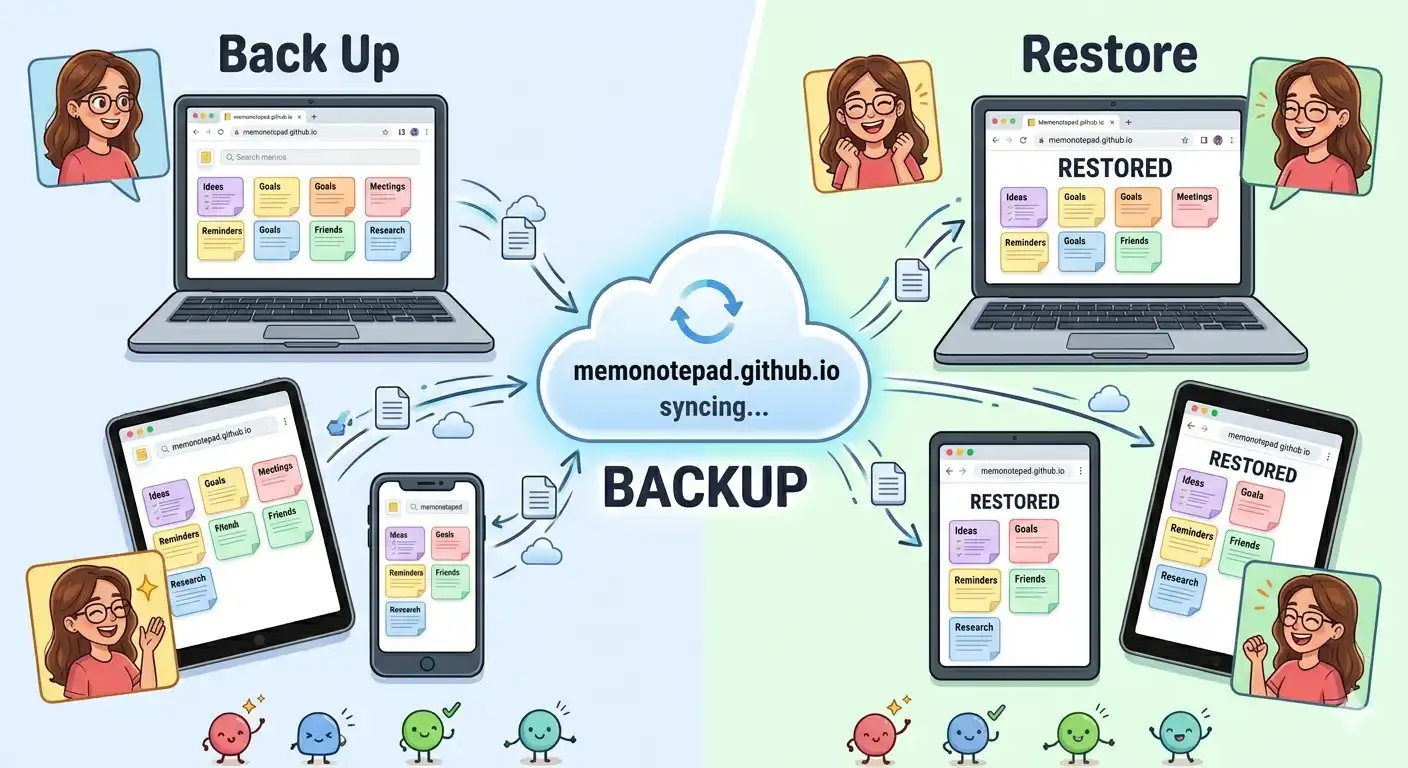
Memo Notepad's privacy model is built on a deliberate trade-off: your notes live only in your browser's localStorage, which means they're genuinely private — but they also don't automatically follow you to a new device or survive a browser data clear. The good news is that the export and import system solves this completely, and it takes less time than making a cup of coffee.
This guide walks through the full backup workflow, what's actually inside the export file, and how to handle the specific scenarios that trip people up — clearing browser data, switching computers, and moving between browsers on the same machine.
Why Backups Matter With Local-First Storage
localStorage is sandboxed to a specific browser profile on a specific device. That's the source of its privacy — but it also means three common events can affect your notes:
Step-by-Step: Exporting Your Memos
Click the export icon in the toolbar, or press Ctrl+E. You'll see options to export the current memo only, or your entire collection.
This bundles every memo — including titles, body text, colour labels, pin status, and timestamps — into a single structured file.
Your browser will download a .json file. Rename it something like "memo-backup-2026-06-10.json" and store it in a dedicated backups folder.
If you want the backup itself accessible across devices, drop the .json file in your own Google Drive, Dropbox, or similar. This is your choice to make — Memo Notepad never does this automatically.
What's Actually Inside the Backup File
The JSON export is human-readable and portable. Here's a simplified look at its structure:
"memos": [
{
"id": "memo_001",
"title": "Client Call Notes",
"content": "Discussed Q3 targets...",
"color": "teal",
"pinned": true,
"updatedAt": "2026-06-10T09:14:00Z"
}
]
}
Because the file is plain JSON, it's also future-proof — you can open it in any text editor, parse it with a script, or migrate it to another tool entirely if you ever needed to. Nothing about the format locks you in.
Step-by-Step: Restoring Your Memos
Navigate to the site on the new browser, new computer, or after a fresh cache clear. You'll see an empty memo list — that's expected.
Choose the .json backup file from wherever you saved it. Memo Notepad will read and validate the structure before importing.
All memos appear in the list exactly as they were, including colour labels and pinned status. Spot-check a couple of memos to confirm the content matches.
Building a Backup Routine That Actually Sticks
- Pick one fixed day per week (Sunday evening is popular) and export every time, no exceptions
- Name files with the date so you can identify the most recent backup at a glance
- Keep at least two recent backups rather than overwriting the same file each time
- Store backups in a location you'd actually remember to check — a dedicated folder, not "Downloads"
Pair this with the colour and pinning system from our visual organisation guide and the shortcut habits in our pro tips article, and your entire Memo Notepad workflow becomes both fast and resilient — private by architecture, and safe by habit.