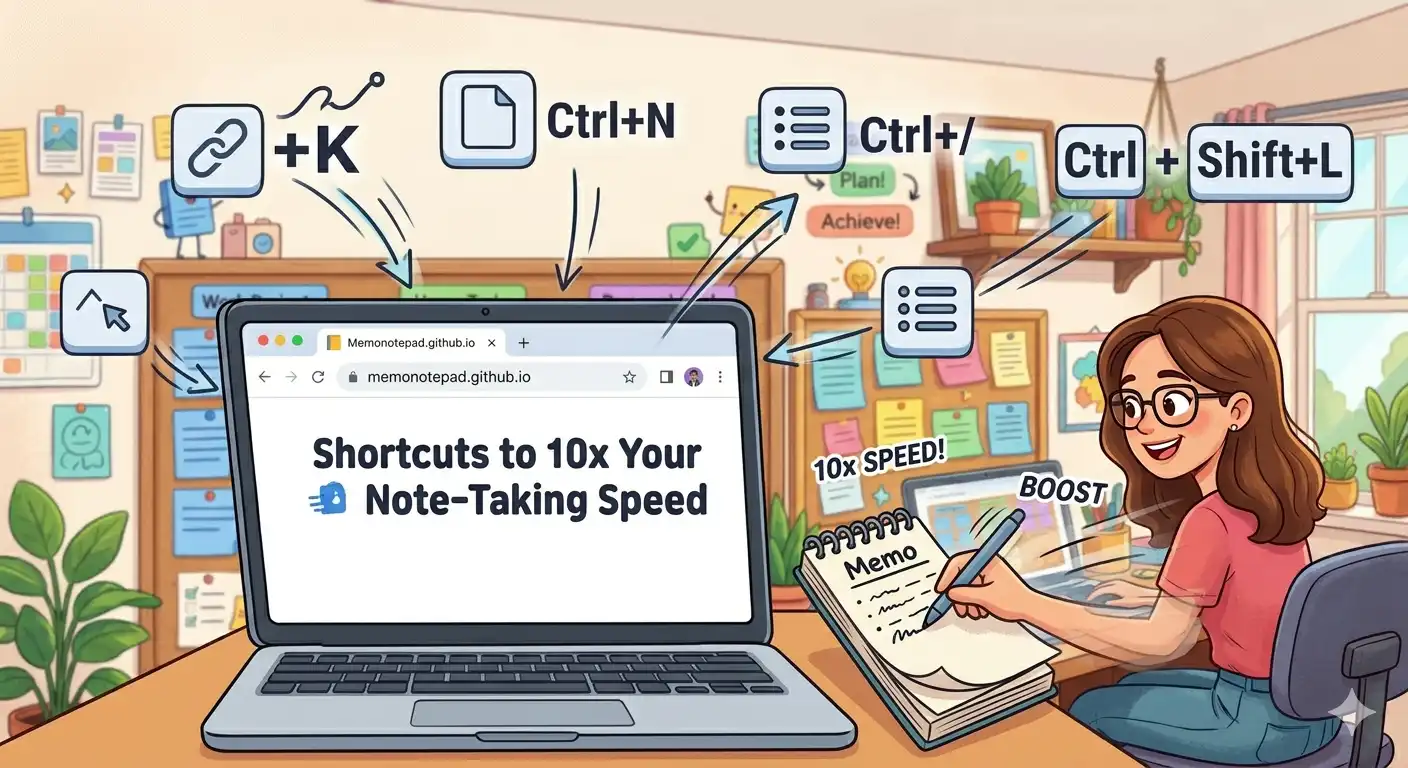
The difference between an average Memo Notepad user and a power user isn't talent — it's a handful of memorised keyboard shortcuts and a few small habits. None of these take more than a day to internalise, and together they can cut the time you spend managing notes by more than half.
This guide covers every shortcut, the auto-save behaviour you should understand, advanced search techniques, and the export/import workflow that ties it all together. If you haven't yet set up a colour-coding system, these shortcuts pair extremely well with one.
The Complete Keyboard Shortcut Reference
Auto-Save: What's Actually Happening
Memo Notepad saves to localStorage continuously as you type, typically with a short debounce of a few hundred milliseconds after your last keystroke. This means you almost never need to think about saving — but understanding the mechanism helps you trust it.
- Auto-save triggers after a brief pause in typing, not on every keystroke (this avoids excessive writes)
- Switching to a different memo forces an immediate save of the one you're leaving
- Closing the browser tab also triggers a final save via the page's unload event
- Ctrl+S forces an instant save if you want visual confirmation rather than waiting
Because saving is automatic and local, there's no "did I save this?" anxiety that comes with traditional desktop apps. The trade-off, as covered in our backup and restore guide, is that this same local-only storage needs an export routine to protect against browser data clears.
Search Techniques That Save the Most Time
The search bar filters your full memo list in real time, matching against both the title and the body content of every memo. A few techniques make it dramatically more effective:
Search by a unique word, not a common one
Typing "meeting" might match dozens of memos. Typing a specific client name, project codename, or date fragment narrows results to one or two memos almost instantly. This is the single biggest reason descriptive titles pay off — vague titles make even great search feel useless.
Search for partial words mid-memo
Because search matches body content, you can find a memo by recalling any distinctive phrase you wrote inside it — not just the title. This effectively turns Memo Notepad into a personal search engine for your own thoughts.
Use search to spot duplicate or stale memos
Periodically search common terms like "idea" or "todo" to surface a cluster of related memos that might be worth merging or cleaning up — a quick companion to the weekly review habit described in our colour system guide.
The Export & Import Workflow, Step by Step
Export and import aren't just backup tools — used well, they're also a fast way to move notes between contexts. Here's the full workflow:
Press Ctrl+E or click the export icon. Choose between exporting the single open memo as .txt or all memos as a combined .json file.
Use .txt when sharing a single note with someone else (e.g. emailing meeting notes). Use .json when backing up your entire memo collection — it preserves colours, pins, and timestamps.
Save your .json backups to a clearly named folder. A simple convention like "memo-backup-2026-06-10.json" makes restoring the right version trivial later.
Open Memo Notepad on the new device, click Import, and select your .json file. All memos, colours, and pins are restored exactly as they were. Full details are in our dedicated backup guide.
Three Habits That Compound Over Time
Title memos the moment you create them. A two-second pause to write "2026-06-10 — Client Call" instead of leaving it as "Untitled" pays for itself the first time you search for it weeks later.
Use Ctrl+N reflexively. Make new-memo-by-shortcut a default reflex rather than a deliberate action. The fastest note-takers never touch the "new memo" button with a mouse.
Export weekly, on a fixed day. Pick a day — Sunday evening works well for most people — and make exporting your full memo collection as .json a five-second ritual. This single habit eliminates the entire risk category covered in our privacy and local storage deep dive: losing notes to an accidental cache clear.