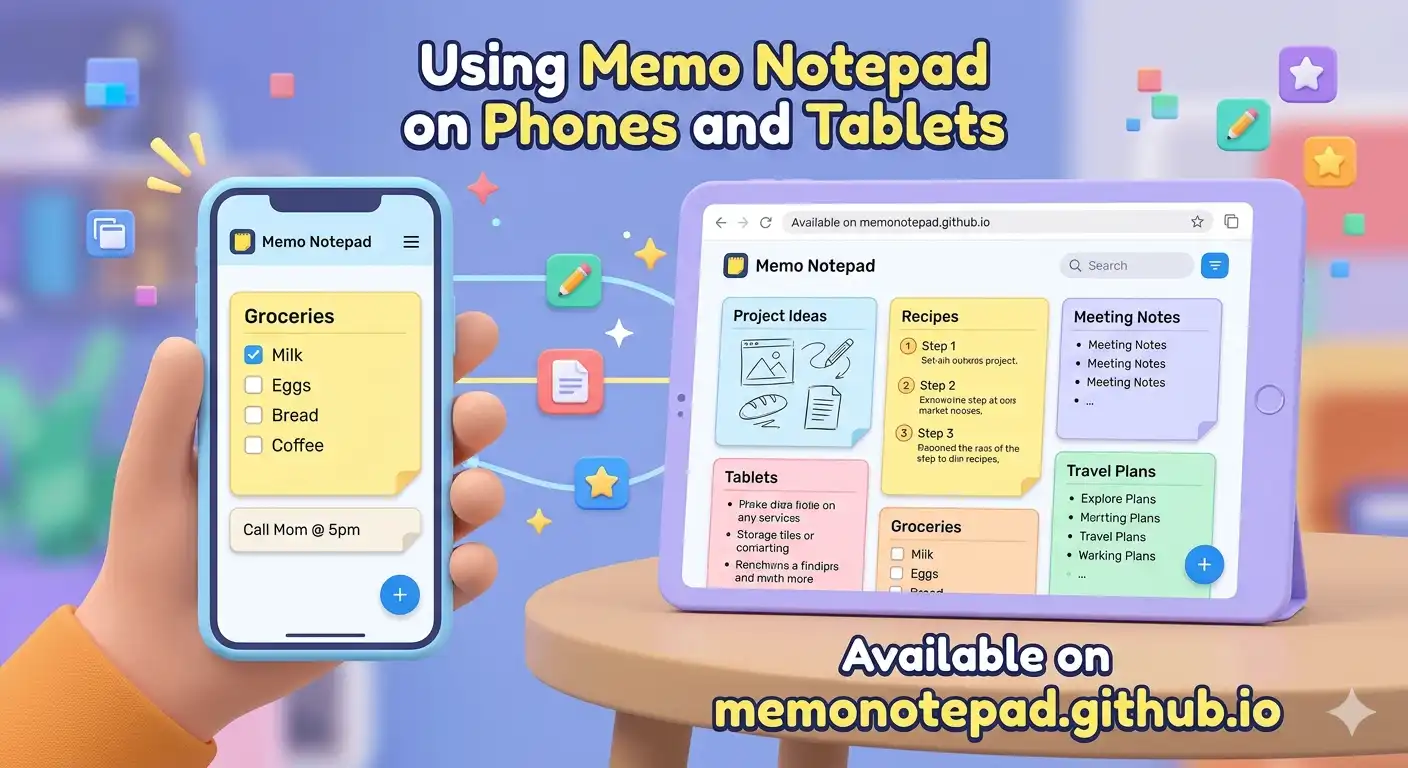
Most people reach for their phone, not a laptop, when an idea strikes. That makes mobile experience the real test of any note-taking tool. Memo Notepad's responsive design means the full feature set — colour labels, pinning, search, export — works identically on a phone screen as it does on a desktop, without a native app to install or update.
This guide covers how the responsive layout adapts to small screens, how to set up quick access on iOS and Android, and the workflows that work best when you're typing with thumbs instead of a keyboard.
How the Responsive Design Adapts
Rather than cramming a desktop layout onto a small screen, Memo Notepad's interface restructures itself for mobile use. The sidebar memo list and the editor panel, which sit side by side on desktop, become a single-column, navigable view on phones — tap a memo to open it, tap back to return to the list. Touch targets for buttons like pin, colour picker, and delete are sized generously enough to tap accurately without zooming in.
Setting Up Quick Access on Your Phone
While Memo Notepad needs no installation, you can get an app-like icon and full-screen experience in under a minute on either major mobile platform.
Once added, the icon behaves like any other app icon — tap it and Memo Notepad opens directly to your memo list, no browser chrome, no typing a URL. The underlying technology is still just a webpage, but the experience feels native.
Mobile-Specific Workflows That Work Well
What Mobile Note-Taking Replaces
For many tasks, Memo Notepad's mobile experience genuinely replaces the need for your phone's built-in notes app: quick capture, colour organisation, search, and pinning cover most everyday note-taking needs without an additional app icon taking up home screen space or storage.
The trade-off, as in the desktop experience, is automatic cross-device sync — native phone notes apps typically sync through the platform's own cloud account. Memo Notepad's manual export/import (detailed in our backup guide) is the equivalent step here, and it carries the same privacy benefit: your notes don't sit in a platform account by default.
- Add the home-screen icon once — it takes under a minute and removes the URL-typing friction entirely
- Use voice dictation for longer thoughts where thumb-typing would slow you down
- Pin your most active mobile memo (shopping list, daily capture) so it's always one tap away
- Export periodically from your phone too — it's the same JSON workflow as desktop
Tablets: The Best of Both Worlds
On a tablet's larger screen, Memo Notepad's layout often renders closer to the desktop experience — sidebar and editor side by side — giving you the full multi-memo overview while still benefiting from touch input and portability. It's a comfortable middle ground for longer writing sessions away from a desk.