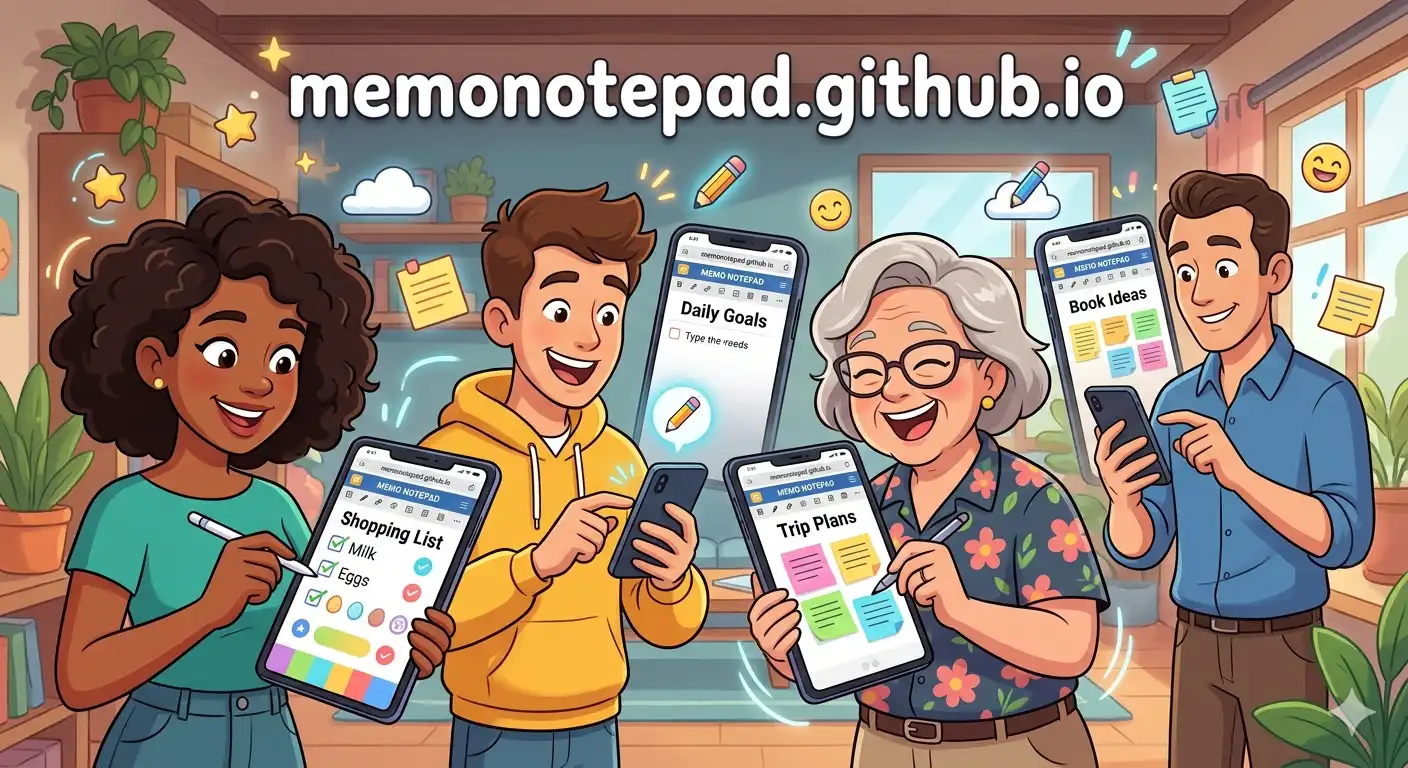
Most people open Memo Notepad to jot down a quick thought — and that's a perfectly good reason. But the app's combination of instant access, zero sign-up, colour labels, pinning, and 100% private localStorage storage makes it capable of a lot more. Here are ten ways real users have built genuine workflows around it.
Create one memo per subject and name it clearly — "ECON 201 — Chapter 5 Notes" rather than just "Notes". Use a consistent colour per subject: teal for science, amber for humanities. The instant search means you can find any memo by typing two words, even during a fast-paced lecture.
Before a meeting, open a new memo titled with the date and meeting name. Use a simple structure: attendees at the top, bullet decisions in the middle, and action items marked with "→" at the end. After the meeting, copy the action items and paste them into your task manager.
Writers often need a space with zero judgment and zero formatting tools. Memo Notepad's plain monospace editor is perfect for dumping a first draft fast. Turn off your internal editor, write freely, then export as a .txt file when you're ready to move the draft into your writing app.
The monospace editor is naturally suited to code. Paste API responses, command-line outputs, environment variables, or quick SQL queries into named memos. Because the data is stored locally and privately, it's a safer place for sensitive config values than a cloud note or a chat window.
Good ideas evaporate within minutes if you don't write them down. Keep Memo Notepad open in a pinned browser tab. When an idea appears, press CtrlN to open a new memo and type it down immediately — without thinking about where to file it. Once a week, review your "raw ideas" and move the good ones to a better-titled memo.
Create a pinned "Shopping" memo and update it throughout the week. Before you leave for the store, open Memo Notepad on your phone — no app download, just the browser. Tap items off as you shop by deleting the line. When the list is empty, wipe the memo and start fresh for next week.
Keep one memo per book or course. Log quotes, key ideas, and your own reactions as you read. The local storage means your reading notes are never shared with a platform that could recommend products based on your annotations — a genuinely private reading journal. See our deeper guide on building a second brain with Memo Notepad.
Write talking points in a memo, then use the full-screen browser window as a teleprompter-style reference. The clean lined-paper background of Memo Notepad is easier to scan quickly than a cluttered slide deck. Export the talking points as a .txt file to email to co-presenters — learn the full export workflow here.
Memo Notepad is fully responsive — open it in your phone's browser and it works exactly like a native notes app, without any download. Add it to your phone's home screen (use "Add to Home Screen" in Safari or Chrome) for one-tap access. When something occurs to you on the commute, you're one tap away from capturing it.
Create a memo titled with today's date and write three things each evening: what went well, what was difficult, and what tomorrow's priority is. Colour these purple so they're clearly journaling entries. Over weeks you'll have a private, searchable diary that no platform or algorithm will ever see. Since notes are all private, it's one of the most genuine journaling experiences available in a browser.
Combine Use Cases for Maximum Productivity
The power compounds when you combine these approaches. A professional might run use cases 2, 5, and 10 simultaneously — meeting notes, idea capture, and daily journaling — all in the same app with different colour labels keeping them visually separate.
To make all ten of these work smoothly, invest ten minutes in building a colour-coding system and learn a handful of keyboard shortcuts. The combination of CtrlN for a new memo and CtrlS to save becomes muscle memory within a day.
And since all of your notes stay completely private on your device, you can use Memo Notepad for genuinely personal, sensitive, or confidential material — without worrying about a data breach, a policy change, or an algorithm reading your thoughts.